AWS re/Start Lab · Networking

Internet Protocols: Static and Dynamic Addresses

This lab investigates a customer scenario where an EC2 instance's public IP changes every time it is stopped and restarted. The solution involves understanding dynamic vs. static addressing and using an Elastic IP to assign a persistent public address.

Lab Summary

Launched an EC2 instance with a dynamic public IP, confirmed that the IP changes after stopping and restarting, then allocated an Elastic IP (52.27.55.26) and associated it to the instance. After restarting the instance again, the public IP remained the same, confirming the fix.

Instance Launch

Created a t3.micro EC2 instance named "test instance" in Public Subnet 1 with an auto-assigned public IP.

Problem Replication

Stopped and restarted the instance. The public IP changed from 35.86.127.200 to 35.91.135.26, confirming the dynamic behavior.

Elastic IP Fix

Allocated Elastic IP 52.27.55.26 and associated it to the test instance. After restart, the IP remained unchanged.

AWS Services Used

Amazon EC2

Launched a t3.micro instance to replicate the customer's issue. The instance was stopped and restarted multiple times to observe IP behavior before and after applying the Elastic IP.

Elastic IP (EIP)

Allocated a static public IPv4 address from AWS's pool and associated it with the test instance. This ensures the IP persists across stop/start cycles.

Step-by-Step Walkthrough

Detailed documentation of the troubleshooting and resolution process.
01

Launch an EC2 instance to replicate the issue

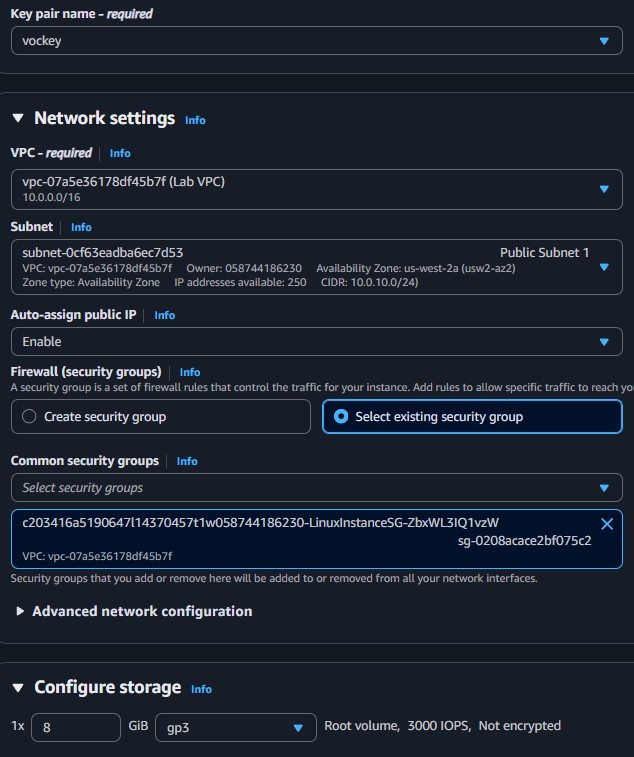
  • From the EC2 console, selected Launch instances.
  • Chose Amazon Linux 2 AMI, instance type t3.micro.
  • Configured networking: Lab VPC, Public Subnet 1, Auto-assign Public IP set to Enable.
  • Selected existing security group Linux Instance SG and key pair vockey.
  • Named the instance test instance and launched it.
02

Observe the dynamic IP behavior

  • Once the instance reached the Running state, noted the initial public IPv4: 35.86.127.200 and private IPv4: 10.0.10.146.
  • Stopped the instance via Instance state > Stop instance. After stopping, the public IP disappeared.
  • Restarted the instance. The new public IPv4 was 35.91.135.26, a different address. The private IP remained 10.0.10.146.
First Launch
35.86.127.200
Private: 10.0.10.146
After Restart
35.91.135.26
Private: 10.0.10.146
With Elastic IP
52.27.55.26
Private: 10.0.10.146
Q: What did you observe? Is the public IP dynamic or static? The public IP is dynamic. It changed from 35.86.127.200 to 35.91.135.26 after stop/start. The private IP stayed the same (10.0.10.146) because private IPs are permanently assigned within the VPC. This replicates the customer's issue.
03

Allocate and associate an Elastic IP

  • Navigated to EC2 > Network and Security > Elastic IPs.
  • Selected Allocate Elastic IP address, kept defaults, and allocated. Received address 52.27.55.26.
  • Selected the new EIP, then Actions > Associate Elastic IP address.
  • Chose test instance from the Instance dropdown and selected its private IP. Clicked Associate.
04

Verify the static IP persists after restart

  • Returned to the Instances page and confirmed the public IP was now 52.27.55.26 (the Elastic IP).
  • Stopped and restarted the instance one more time.
  • After restart, the public IP remained 52.27.55.26, confirming the Elastic IP is persistent.
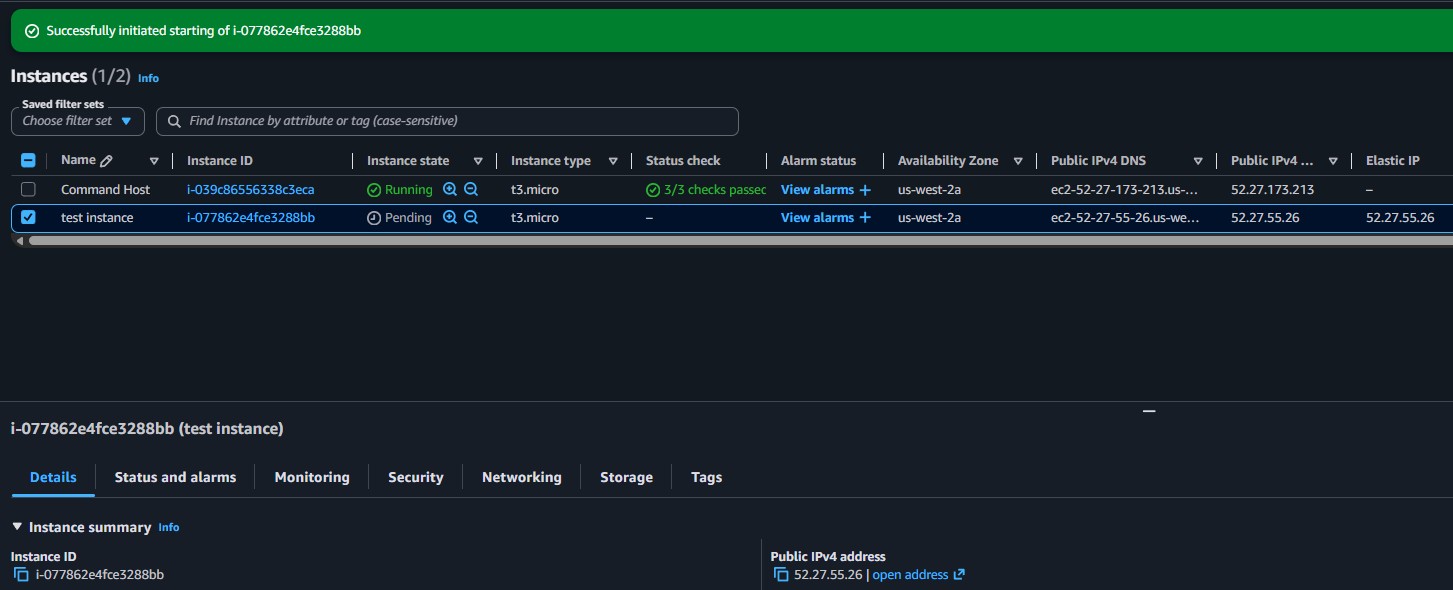
Q: Did you solve the customer's issue? Is this now a static IP? Yes. By associating an Elastic IP, the public address becomes static and no longer changes when the instance is stopped and restarted. The customer can now rely on this IP for services that depend on a fixed address.

Key Learnings

What Was Learned

By default, EC2 public IPs are dynamic: they change every time the instance is stopped and restarted.
Private IPs are static within the VPC and do not change regardless of instance state.
An Elastic IP provides a persistent (static) public address that stays associated to an instance across stop/start cycles.
Elastic IPs are free while associated to a running instance, but AWS charges for EIPs that are allocated but not associated.

Technical Conclusion

This lab demonstrated why services that depend on a fixed IP address break when using the default dynamic public IP assignment. Every time an EC2 instance is stopped and started, AWS releases the old public IP and assigns a new one from its pool.

The solution is to allocate an Elastic IP and associate it with the instance. This gives the instance a permanent public address that survives reboots. For the customer (Bob), this meant his dependent services would no longer break on each restart.
